Learnova
Online courses platform: a Flutter app for iOS and Android, a Next.js website with an Instructor dashboard and an Admin panel, and a background worker. You add your own keys; everything else is ready.
1. Welcome
Thank you for buying Learnova. This guide is written for beginners: follow the chapters in order and you will have the server, the website and the app running with your own name and keys.
What is in the download
| Folder | What it is |
|---|---|
learnova_mobile_flutter/ | The mobile app (Flutter, iOS and Android). Learners browse and buy courses, watch video lessons (also offline), take quizzes, hand in assignments, ask questions, join live classes, earn certificates and XP, and subscribe to Learnova Plus. |
learnova_web_nextjs/ | One Next.js app that is the website (course store, checkout, the learning player), the Instructor dashboard (/instructor), the Admin panel (/admin) and the API the mobile app uses (/api/v1). |
learnova_worker/ | Background jobs: turns uploaded videos into streaming (HLS) files, writes lesson transcripts, sends push notifications and live-class reminders, expires unpaid bank orders, shares Plus revenue with instructors, awards badges. |
deploy/ | The Docker stack: website + worker + PostgreSQL database + MinIO file storage, started with one command. |
tools/rename.mjs | Rebrands the whole kit (name, app id, colour, font, icon) in one command. |
docs/ | This documentation (HTML and PDF). |
What it looks like
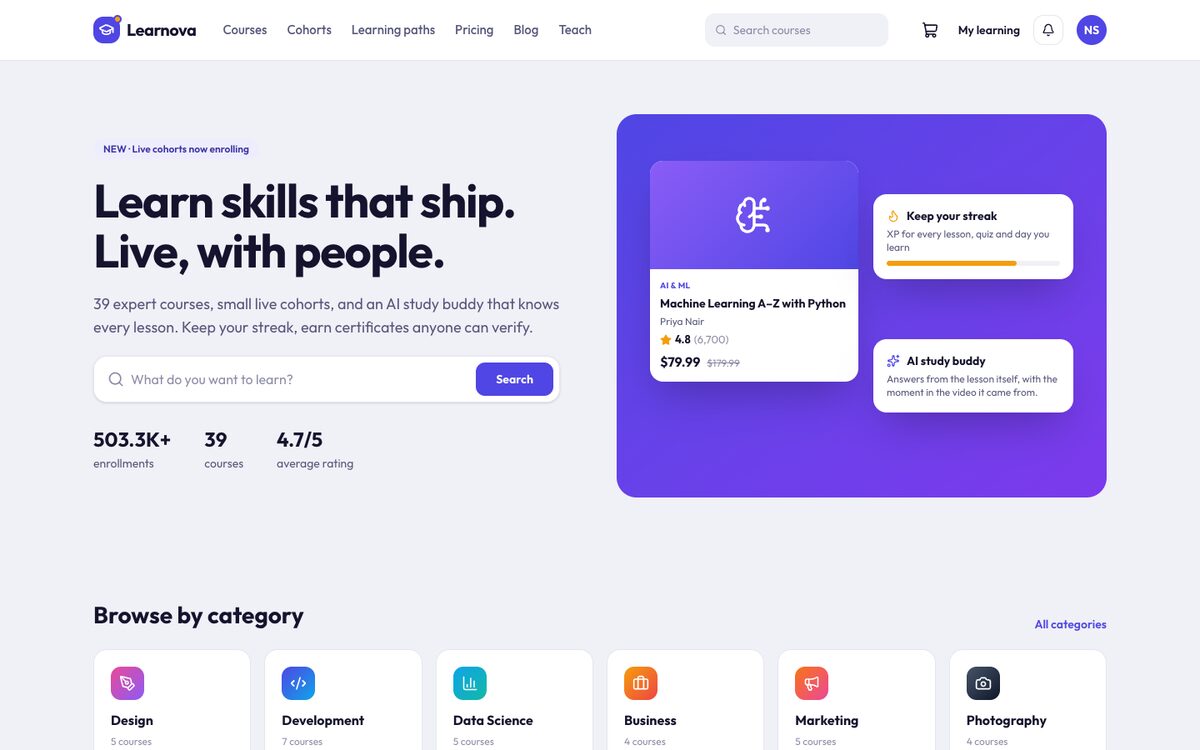
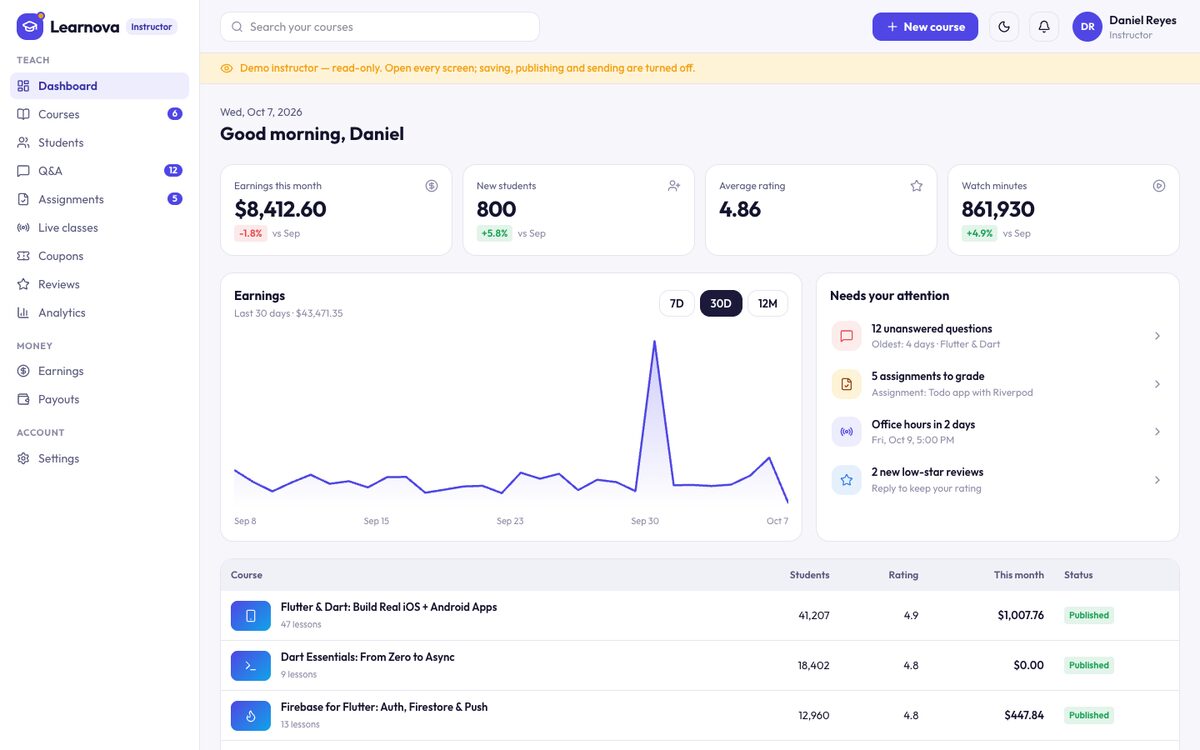
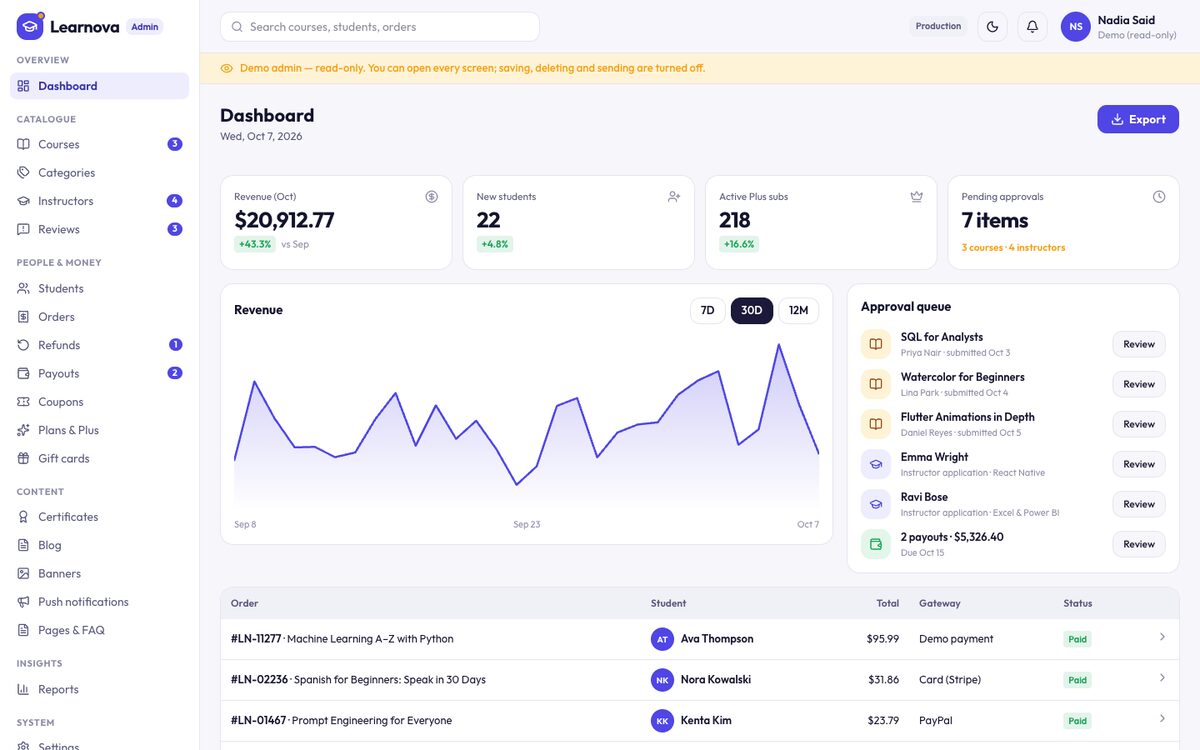
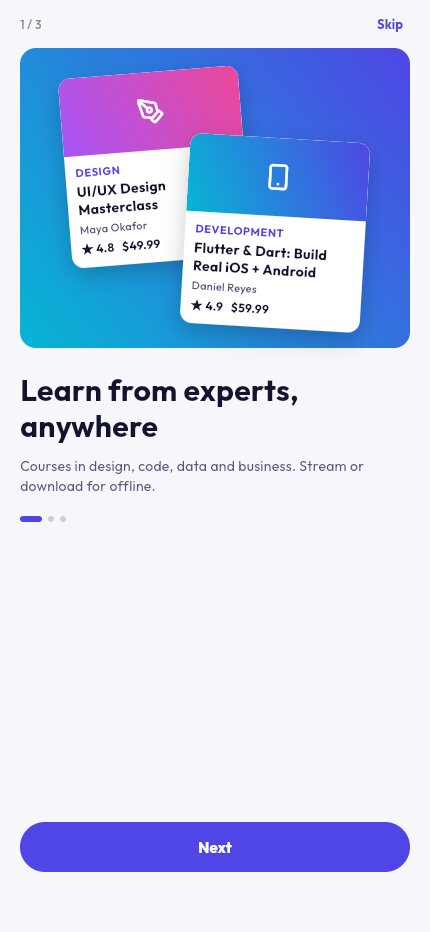
How the parts fit
The mobile app and the website both talk to the same server (the Next.js app). All data lives in your PostgreSQL database. Lesson videos, thumbnails, files and certificates live in S3-compatible storage (MinIO in the Docker stack, or Amazon S3, Cloudflare R2, Backblaze B2…). Firebase is used only for sign-in, push notifications, Analytics and Crashlytics.
2. Requirements
To run the server
- A Linux server (VPS) with at least 2 CPU cores, 4 GB RAM and 40 GB disk (more disk for many videos). Ubuntu 24.04 is used in this guide.
- Docker with the Compose plugin (install guide).
- A domain name, for example
your-domain.com, with two DNS records pointing at the server:your-domain.comandstorage.your-domain.com.
To build the mobile app
- Flutter 3.44 or newer (install), Android Studio for Android, a Mac with Xcode 26 for iOS.
- Node.js 22 or newer and pnpm 11 (
npm i -g pnpm) if you run the website without Docker or use the rename tool.
Accounts you will create (all have free tiers)
- Firebase (required: sign-in and push).
- Optional, when you want them: RevenueCat (Plus subscriptions in the apps), Stripe / PayPal / Razorpay / Paystack / Flutterwave (website payments), any OpenAI-compatible AI provider (study buddy and transcripts), any SMTP email provider.
3. Quick start (Docker)
This gets the whole server running on your VPS in about 15 minutes. You need the Firebase keys from chapter 4 for sign-in; you can do this chapter first and add them after.
- Copy the kit to the server, for example with
scp learnova-1.0.0.zip root@YOUR_SERVER_IP:, then on the server:apt install -y unzip unzip learnova-1.0.0.zip cd learnova/deploy cp .env.example .env nano .env - In
.env, fill at least these values:Key What to put POSTGRES_PASSWORDA long random password (run openssl rand -hex 24to make one).APP_URLYour website address, e.g. https://your-domain.com.MEDIA_SIGNING_SECRETAnother random value ( openssl rand -hex 24).S3_ACCESS_KEY_ID/S3_SECRET_ACCESS_KEYA user name and a long password you choose for the built-in MinIO storage. S3_PUBLIC_ENDPOINTThe address phones and browsers reach the storage on: https://storage.your-domain.com(see chapter 5), orhttp://YOUR_SERVER_IP:9000for a first test.NEXT_PUBLIC_FIREBASE_*,FIREBASE_*From chapter 4. - Start everything:
The first build takes 5–10 minutes. On the first start the database tables are created and sample data is loaded (courses, instructors, learning paths, Plus plans, pages, FAQ and a year of sample sales), so every screen has content.docker compose up -d --build - Check it: open
http://YOUR_SERVER_IP:3000. You should see the home page with the sample courses.http://YOUR_SERVER_IP:3000/api/v1/healthshows{"ok":true,"db":"ok",…}. - Make yourself the admin (chapter 7), then put it on your domain with HTTPS (chapter 5).
WEB_PORT, MINIO_PORT and MINIO_CONSOLE_PORT in .env (and use the new storage port in S3_PUBLIC_ENDPOINT)..env? Run docker compose up -d again. Changed a NEXT_PUBLIC_… value? These are built into the website, so run docker compose up -d --build.4. Firebase setup
Firebase handles sign-in (Google, Apple, email and guest) and push notifications. Your data stays in your own database.
- Go to the Firebase console → Add project. Give it your app name. Google Analytics: on.
- Build → Authentication → Get started → Sign-in method. Turn on: Email/Password (learners and staff), Google, Anonymous (guest browsing) and Apple (see chapter 18).
- Authentication → Settings → Authorized domains: add
your-domain.com. - Project settings (gear) → General → Your apps → Add app → Web (name it "Website"). Copy the values from the
firebaseConfigshown intodeploy/.env:NEXT_PUBLIC_FIREBASE_API_KEY="…apiKey…" NEXT_PUBLIC_FIREBASE_AUTH_DOMAIN="your-project.firebaseapp.com" NEXT_PUBLIC_FIREBASE_PROJECT_ID="your-project" NEXT_PUBLIC_FIREBASE_STORAGE_BUCKET="your-project.firebasestorage.app" NEXT_PUBLIC_FIREBASE_MESSAGING_SENDER_ID="…" NEXT_PUBLIC_FIREBASE_APP_ID="1:…:web:…" - Project settings → Service accounts → Generate new private key. A JSON file downloads. Copy three values from it into
deploy/.env:
Keep theFIREBASE_PROJECT_ID="your-project" FIREBASE_CLIENT_EMAIL="firebase-adminsdk-xxxx@your-project.iam.gserviceaccount.com" FIREBASE_PRIVATE_KEY="-----BEGIN PRIVATE KEY-----\n(your key)\n-----END PRIVATE KEY-----\n"\nas they are in the file. Keep this file secret. - For the mobile app, install the FlutterFire CLI and connect the app (it registers the Android and iOS apps and writes their config files):
Use your own app id here (see chapter 20 to change it first). Then copy the values intodart pub global activate flutterfire_cli cd learnova_mobile_flutter flutterfire configure --project your-project --platforms android,ios \ --android-package-name com.yourcompany.learnova --ios-bundle-id com.yourcompany.learnovalearnova_mobile_flutter/.env(FIREBASE_ANDROID_API_KEY,FIREBASE_ANDROID_APP_ID,FIREBASE_IOS_API_KEY,FIREBASE_IOS_APP_ID,FIREBASE_IOS_CLIENT_ID,FIREBASE_MESSAGING_SENDER_ID,FIREBASE_PROJECT_ID): you find them inandroid/app/google-services.json,ios/Runner/GoogleService-Info.plist, or in Project settings → Your apps. - iOS Google sign-in: copy
ios/Flutter/Firebase.xcconfig.exampletoios/Flutter/Firebase.xcconfigand setGOOGLE_REVERSED_CLIENT_IDto theREVERSED_CLIENT_IDfromGoogleService-Info.plist. - Android Google sign-in needs your signing key fingerprints: run
cd android && ./gradlew signingReportand add the SHA-1 and SHA-256 under Project settings → Your apps → Android → Add fingerprint. Add the fingerprints of your upload key and of Google Play's app signing key too when you publish.
5. Put it online (VPS, HTTPS)
The Docker stack listens on port 3000 (website) and 9000 (storage). Put a web server with free HTTPS in front of both. Caddy is the easiest:
apt install -y caddy
cat > /etc/caddy/Caddyfile <<'EOF'
your-domain.com {
  reverse_proxy localhost:3000
}
storage.your-domain.com {
  reverse_proxy localhost:9000
}
EOF
systemctl reload caddy
Then in deploy/.env set APP_URL="https://your-domain.com" and S3_PUBLIC_ENDPOINT="https://storage.your-domain.com", and run docker compose up -d. Caddy gets the certificates by itself.
Already use Traefik or Nginx? Point your-domain.com at port 3000 and storage.your-domain.com at port 9000 in the same way. Close ports 3000, 9000 and 9001 in your firewall once the proxy works (ufw allow 22,80,443/tcp && ufw enable). The MinIO console (port 9001) is for you only; reach it through an SSH tunnel: ssh -L 9001:localhost:9001 root@YOUR_SERVER_IP.
Backups
cd learnova/deploy
docker compose exec postgres pg_dump -U learnova learnova | gzip > backup-$(date +%F).sql.gz
Run it daily with cron and copy the files off the server. Videos and files are in the minio-data Docker volume; back it up too, or use a cloud bucket (next chapter).
6. Other hosting (Vercel, cloud storage)
Website on Vercel
- Create a PostgreSQL database (Neon, Supabase, Railway, or your own) and copy its connection string.
- Import
learnova_web_nextjsinto Vercel (Root directory:learnova_web_nextjs). Add every key oflearnova_web_nextjs/.env.exampleunder Settings → Environment Variables, withDATABASE_URLset to your database. - Create the tables and the sample data once from your computer: in
learnova_web_nextjs, put the sameDATABASE_URLin.env, thenpnpm install,pnpm prisma:migrate:deploy,pnpm first-run. - The worker (video conversion, transcripts, push, reminders) needs ffmpeg and runs all the time, so it cannot run on Vercel. Run it on any small server with Docker:
cd learnova_worker && docker build -t learnova-worker . && docker run -d --restart unless-stopped --env-file .env learnova-workerwith the worker's.envfilled from.env.example.
Cloud storage instead of MinIO
Any S3-compatible bucket works. Set S3_ENDPOINT (empty for Amazon S3; for Cloudflare R2 https://<account>.r2.cloudflarestorage.com), S3_REGION, S3_BUCKET, S3_ACCESS_KEY_ID, S3_SECRET_ACCESS_KEY, and leave S3_PUBLIC_ENDPOINT empty. Keep the bucket private, and add a CORS rule that allows GET and PUT from your domain (instructors upload straight to the bucket, and the website plays from it).
7. First admin and sample data
Create your own admin account (it makes the Firebase email account when it does not exist yet):
cd learnova/deploy
docker compose run --rm migrate pnpm admin:create you@example.com
It prints a link: open it to choose your password, then sign in at https://your-domain.com/admin/login. (You can also put the password after the email; it then shows on screen and in your shell history.) Without Docker: cd learnova_web_nextjs && pnpm admin:create you@example.com. Invite more staff from Admin → Roles & staff (chapter 19).
The sample data
The first start fills an empty database with sample categories, courses with lessons and quizzes, instructors, learners, learning paths, coupons, Plus plans, pages, FAQ and a year of sample sales, so you can see every screen working (dashboards, earnings, reports). Sample lessons play one short original clip until you upload real videos. When you are ready to go live:
- Unlist or archive the sample courses in Admin → Courses, and remove the sample instructors in Admin → Instructors, or keep them as placeholders while your own instructors upload.
- Check Plans & Plus, Coupons, Pages & FAQ (terms, privacy, refund policy) and Settings and edit them for your business.
- To start from a completely empty database instead, run
docker compose down -v(this deletes all data and videos), setSEED_SALES_HISTORY=falsein.envto skip the sample sales, thendocker compose up -dagain.
8. Setup check
Open Admin → Setup: it lists every key, says which are missing, and tests each connection (database, storage, Firebase, push, every payment gateway, email, AI) with a clear message. The same check runs in a terminal:
docker compose run --rm migrate pnpm run doctor     # Docker
cd learnova_web_nextjs && pnpm run doctor          # without Docker
Use pnpm run doctor, not pnpm doctor (that one is pnpm's own check of your pnpm install).
9. Run the mobile app
cd learnova_mobile_flutter, then copy.env.exampleto.env(the download already has one with empty values) and set:API_BASE_URL=https://your-domain.com APP_NAME=Learnova FIREBASE_… (from chapter 4)- Get the packages and run on a phone or emulator:
flutter pub get flutter run - Build for testing:
flutter build apk --release(Android) or openios/Runner.xcworkspacein Xcode (iOS).
http://10.0.2.2:7381 and the iOS simulator at http://localhost:7381 (pnpm dev uses port 7381; the Docker stack uses WEB_PORT, 3000 by default). Release builds need an https address.The app reads every setting from .env: no keys live in Dart code. After changing .env, stop the app and run it again (hot reload does not reload .env).
10. Learnova Plus in the apps (RevenueCat)
Learners buy single courses, and can subscribe to Learnova Plus for every Plus course, unlimited AI questions, offline downloads and certificates. Inside the iOS and Android apps, Plus is sold through the App Store and Google Play with RevenueCat in between. The server is told about every purchase and gives access; the app never decides access itself.
- Create the subscriptions in App Store Connect and Google Play Console (one subscription group) with these ids, or your own (the ids are stored with each plan in Admin → Plans & Plus):
learnova_plus_monthly,learnova_plus_yearly,learnova_plus_student. - In RevenueCat: create a project, add your iOS and Android apps, import the products, create an entitlement
pluswith the Plus products, and an offeringdefault(current) with the Plus packages. - App keys: RevenueCat → Project → API keys → the public SDK keys. In
learnova_mobile_flutter/.env:REVENUECAT_IOS_KEY,REVENUECAT_ANDROID_KEY,USE_REVENUE_CAT=true. - Server keys in
deploy/.env:REVENUECAT_API_KEY(a secret API key) andREVENUECAT_WEBHOOK_SECRET(any long random value). - RevenueCat → Integrations → Webhooks → add
https://your-domain.com/api/v1/webhooks/revenuecatwith the Authorization header value equal toREVENUECAT_WEBHOOK_SECRET.
Single courses and learning paths are paid in the app with the same checkout as the website: wallet, bank transfer, or the gateways from chapter 11, whose payment page opens in the browser. Courses bought on the website open in the app too. A share of each month's Plus revenue is paid to instructors by minutes watched; set the share in Admin → Settings → Learnova Plus.
DEMO_PURCHASES=false to force live mode.11. Website payments
On the website, learners pay for courses, learning paths and Plus with any gateway you set up. Each gateway appears at checkout when its keys are set; switch them on or off in Admin → Settings → Payment gateways (the Configure button shows which keys are set and the webhook address to copy).
| Gateway | Keys | Webhook URL and events |
|---|---|---|
| Stripe (cards, Apple Pay, Google Pay; Plus as a real subscription) | STRIPE_SECRET_KEY, STRIPE_WEBHOOK_SECRET | https://your-domain.com/api/v1/webhooks/stripe with events checkout.session.completed, checkout.session.expired, invoice.paid, invoice.payment_failed, customer.subscription.updated, customer.subscription.deleted. |
| PayPal | PAYPAL_CLIENT_ID, PAYPAL_CLIENT_SECRET, PAYPAL_MODE=live (anything else = sandbox) | None needed: the payment is confirmed when the buyer returns. |
| Razorpay (India) | RAZORPAY_KEY_ID, RAZORPAY_KEY_SECRET, RAZORPAY_WEBHOOK_SECRET | https://your-domain.com/api/v1/webhooks/razorpay, event payment_link.paid, with the same secret. |
| Paystack (Nigeria, Ghana) | PAYSTACK_SECRET_KEY | https://your-domain.com/api/v1/webhooks/paystack (event charge.success; signed with your secret key). |
| Flutterwave (Africa) | FLUTTERWAVE_SECRET_KEY, FLUTTERWAVE_WEBHOOK_HASH | https://your-domain.com/api/v1/webhooks/flutterwave; set the same Secret hash in Flutterwave → Settings → Webhooks. |
| Bank transfer | None: set your bank details in Admin → Settings → Payment gateways → Bank transfer | The buyer sees your details and a reference; you approve the order in Admin → Orders when the money arrives. Unpaid orders cancel after the hold time. |
PayPal, Razorpay, Paystack and Flutterwave take one-time payments, so Plus bought with them is a pass for one period that the learner renews by buying again. Every payment is credited once, even when the return page and the webhook both arrive. Refunds from Admin → Orders go back through the same gateway; learners ask for refunds from their order page, within the window you set.
12. Currency and tax
- Admin → Settings → Currency & tax: the checkout currency and whether prices include tax (EU, UK, AU style) or tax is added at checkout (US style).
- Add a tax rule per country, US state or Canadian province (and one "European Union" rule as a fallback for EU countries). Checkout uses the most specific active rule for the billing address, shows it on the receipt, and the Reports → Tax / VAT tab totals it.
13. Push notifications
- Android works once Firebase is set up (chapter 4).
- iOS: in the Apple Developer site create an APNs key (Keys → +, Apple Push Notifications service), then upload it in Firebase → Project settings → Cloud Messaging → Apple app configuration.
- The app registers each signed-in device and joins two topics:
learnova_allandlearnova_<language>. Send campaigns from Admin → Push notifications to everyone, Plus members, a course's learners, or one learner, now or scheduled. Learners also get pushes for replies, live-class reminders and announcements, and can turn each kind off in the app. - The topic prefix is
PUSH_TOPIC_PREFIX; it must be the same indeploy/.envand the app's.env(the rename tool keeps them equal).
14. Video lessons and storage
Instructors upload lesson videos in Instructor → Courses → Curriculum. The file goes straight to your storage; the worker then makes streaming versions (1080p down to 360p, HLS) and a poster, and the lesson plays in the app and on the website with signed links that expire. Learners with Plus can download lessons for offline viewing in the app. Lesson files (PDFs, code) and assignment uploads are stored the same way.
15. AI study buddy and transcripts
Learners ask the AI study buddy about a lesson; instructors get draft answers in Q&A and quiz question drafts; the worker writes lesson transcripts. Set AI_API_KEY (and AI_BASE_URL for a provider other than OpenAI — Gemini, OpenRouter and Groq offer OpenAI-compatible URLs), and optionally AI_MODEL. For transcripts set SUBTITLE_PROVIDER=openai (any Whisper-compatible API). Free learners get a daily number of AI questions (Admin → Settings → Learnova Plus); Plus members have no limit. Without a key, the AI buttons say "add your key".
16. Live classes
Instructors schedule live sessions in Instructor → Live classes with a meeting link (Zoom, Google Meet, Teams…; a default link is set once in Instructor → Settings → Integrations). Booked learners see the session in the app and on the website, get a reminder before it starts (the time is set in Admin → Settings → Live classes), and join with one tap. Cohort courses sell seats for a scheduled run.
17. Email
Receipts, refund decisions, instructor application and course review results, staff invites, password resets and contact-form messages are sent by email. Set SMTP_HOST, SMTP_PORT (587, or 465 with SMTP_SECURE=true), SMTP_USER, SMTP_PASS from any provider (Amazon SES, Postmark, Mailgun, Brevo, your host). Set the sender name and address in Admin → Settings → Email (SMTP) and press Send test email. Without SMTP_HOST, emails are written to the server log instead (docker compose logs web), which is handy while testing.
18. Sign-in methods
- Email and password: on in Firebase. Learners sign up, verify and reset their password from the app or website.
- Google: on in Firebase; Android needs the SHA fingerprints, iOS needs
GOOGLE_REVERSED_CLIENT_ID(chapter 4). - Guest: Firebase Anonymous. Learners browse and preview without an account; turn it on or off in Admin → Settings → General. A guest who signs up keeps their progress.
- Apple (required by Apple when you offer Google sign-in on iOS): Apple Developer → your app id → enable Sign in with Apple. In Firebase → Apple provider, add your Services ID, Team ID, Key ID and the .p8 key. On the server set
APPLE_TEAM_ID,APPLE_KEY_ID,APPLE_CLIENT_ID(your bundle id) andAPPLE_PRIVATE_KEYso account deletion also revokes the Apple sign-in, as Apple requires. SetNEXT_PUBLIC_AUTH_APPLE=trueto show it on the website too. - Staff sign in with email and password at
/admin/login. Two-step verification uses an authenticator app (Google Authenticator, 1Password, Authy…). To offer it: in the Google Cloud console upgrade Firebase Authentication to Identity Platform, then turn on TOTP in Firebase → Authentication → Sign-in method → Multi-factor authentication. Each staff member then opens the account menu (top right) in the admin → Two-step verification, scans the QR code and enters a code; from then on sign-in asks for a 6-digit code after the password. To make it compulsory setADMIN_REQUIRE_MFA=trueonce everyone is enrolled. Someone who loses their phone: a super admin opens them in Admin → Roles & staff and presses Reset under Two-step verification.
19. Staff and roles
Admin → Roles & staff lists your team. Invite someone by email and pick a role; they get a link to choose a password (valid 72 hours, and you can resend it). Built-in roles: Super admin (everything, the only role that manages staff), Content reviewer, Support, Finance and Marketing. Open a role to tick, per area (courses, orders, payouts, settings…), what it may view, create, edit, delete and approve, or create your own roles. The admin menu only shows the areas a role can open. Every change made in the admin is recorded in Admin → Audit log.
Instructors apply from the website (/teach); you approve them in Admin → Instructors and set their revenue share. Their courses wait in Admin → Courses → In review until you approve them (or turn on "Publish new courses without review" in Settings → Learning & payouts).
20. Rebrand: name, app id, colours
One command changes the app name everywhere (app, website, admin, emails, push topics, store product ids), the Android application id and iOS bundle id, the brand colour, the website font and the icons:
cd learnova
node tools/rename.mjs --name "MyAcademy" --id com.mycompany.myacademy --color "#0EA5E9" --font "DM Sans" --icon my-icon-1024.png
Every option is optional, so you can run it again later for one change. Add --dry to see what would change. Afterwards:
cd learnova_mobile_flutter
flutter pub get
dart run flutter_launcher_icons
dart run flutter_native_splash:create
flutterfire configure --project your-project   # Firebase files for the new app id
and rebuild the website (docker compose up -d --build). The folder names (learnova_mobile_flutter and so on) stay as they are; they are never shown to users.
By hand: the brand colours are in learnova_mobile_flutter/lib/core/theme/app_colors.dart (app) and learnova_web_nextjs/src/app/globals.css (website, --brand, --brand-soft, --brand-ink); the app name is APP_NAME in the app's .env and NEXT_PUBLIC_APP_NAME on the server; the name in emails, receipts and certificates is Admin → Settings → General → Platform name.
21. Logo, icon and fonts
- App icon and splash: replace the PNGs in
learnova_mobile_flutter/assets/icon/(1024×1024:icon_ios.pngwithout transparency,icon_android.png,icon_foreground.pngfor Android adaptive icons,icon_splash.png), then rundart run flutter_launcher_iconsanddart run flutter_native_splash:create. The splash and adaptive-icon background colours are influtter_native_splash.yamlandpubspec.yaml. - Website icons: replace
learnova_web_nextjs/src/app/icon.png(512×512),apple-icon.png(180×180) andfavicon.ico. The logo mark next to the name issrc/components/shared/logo.tsx. - App font: put your
.ttffiles inassets/fonts/, list them underfonts:inpubspec.yaml, and changefamilyinlib/core/theme/app_text.dart. Check the font's licence allows apps. - Website font:
--fontin the rename tool, or change thenext/font/googleimport inlearnova_web_nextjs/src/app/layout.tsx.
22. Basic edits
| I want to change… | Where |
|---|---|
| Categories, their icons, colours and topics | Admin → Categories |
| Plus plans, prices, trial days, perks | Admin → Plans & Plus |
| Instructor share, refund window, payout hold and minimum, XP rewards, default quiz pass mark | Admin → Settings → Learning & payouts |
| Coupons and gift cards | Admin → Coupons, Admin → Gift cards (instructors make coupons for their own courses) |
| Home banners | Admin → Banners |
| Terms, privacy, refund policy, account deletion, about, FAQ | Admin → Pages & FAQ |
| Blog posts | Admin → Blog |
| Certificate design | Admin → Certificates |
| App versions (force update), maintenance mode, guest mode, store links | Admin → Settings → General |
| Course languages instructors can choose | Admin → Settings → Languages |
| Analytics or marketing scripts on the website | Add them in learnova_web_nextjs/src/app/(site)/layout.tsx and load them only when readCookieChoice() (from src/components/site/cookie-consent.tsx) says the visitor allowed analytics / marketing |
| App texts | The page files in learnova_mobile_flutter/lib/features/*/pages/ |
| Website texts | The page files in learnova_web_nextjs/src/app/(site)/ and src/components/site/ |
23. Every key, explained
"Where" says which .env file it goes in: Docker = deploy/.env (shared by website and worker in the Docker stack), website = learnova_web_nextjs/.env (without Docker), worker = learnova_worker/.env (without Docker), app = learnova_mobile_flutter/.env. Admin → Setup shows the same list with the live status of each key.
| Key | Required | Where | What it does |
|---|---|---|---|
| Database | |||
DATABASE_URL | Yes | website, worker | PostgreSQL connection string |
DATABASE_POOL_MAX | — | website | Connections per server process (default 10) |
POSTGRES_DB | Yes | Docker | Database the Docker stack creates |
POSTGRES_USER | Yes | Docker | Database user for the Docker stack |
POSTGRES_PASSWORD | Yes | Docker | Database password for the Docker stack |
| App | |||
APP_URL | Yes | website, Docker | Public URL of the web app (links in emails, signed media) |
NEXT_PUBLIC_APP_NAME | — | website, Docker | Name shown in the web app |
NEXT_PUBLIC_IOS_APP_URL | — | website, Docker | App Store link for the website's Get the app buttons |
NEXT_PUBLIC_ANDROID_APP_URL | — | website, Docker | Google Play link for the website's Get the app buttons |
WEB_PORT | — | Docker | Host port the web container listens on |
| Storage | |||
MINIO_PORT | — | Docker | Host port of the built-in MinIO storage API (default 9000) |
MINIO_CONSOLE_PORT | — | Docker | Host port of the MinIO web console (default 9001) |
| App | |||
CORS_ORIGINS | — | website, Docker | Browser apps allowed to call /api/v1 |
PUSH_TOPIC_PREFIX | — | website, Docker, app | FCM topic prefix (<prefix>all, <prefix><language>); same as the server's |
| Firebase sign-in | |||
NEXT_PUBLIC_FIREBASE_API_KEY | Yes | website, Docker | Firebase web config |
NEXT_PUBLIC_FIREBASE_AUTH_DOMAIN | Yes | website, Docker | Firebase web config |
NEXT_PUBLIC_FIREBASE_PROJECT_ID | Yes | website, Docker | Firebase web config |
NEXT_PUBLIC_FIREBASE_STORAGE_BUCKET | — | website, Docker | Firebase web config |
NEXT_PUBLIC_FIREBASE_MESSAGING_SENDER_ID | — | website, Docker | Firebase web config |
NEXT_PUBLIC_FIREBASE_APP_ID | — | website, Docker | Firebase web config (sign-in works without it) |
NEXT_PUBLIC_FIREBASE_ADMIN_APP_ID | — | website, Docker | Optional second web app for the admin panel |
NEXT_PUBLIC_AUTH_APPLE | — | website, Docker | "true" shows Continue with Apple on the website (turn the Apple provider on in Firebase first) |
ADMIN_REQUIRE_MFA | — | website, Docker | Require two-step sign-in for staff |
| Firebase Admin + push | |||
FIREBASE_PROJECT_ID | Yes | website, worker, Docker, app | Firebase project id |
FIREBASE_CLIENT_EMAIL | Yes | website, worker, Docker | Service account e-mail |
FIREBASE_PRIVATE_KEY | Yes | website, worker, Docker | Service account private key |
| Secrets | |||
MEDIA_SIGNING_SECRET | Yes | website, Docker | Signs media URLs (openssl rand -hex 24) |
REVENUECAT_WEBHOOK_SECRET | — | website, Docker | Authorization header RevenueCat sends to the webhook |
| Payments | |||
REVENUECAT_API_KEY | — | website, Docker | RevenueCat secret API key (in-app purchases) |
STRIPE_SECRET_KEY | — | website, Docker | Stripe secret key (web checkout) |
STRIPE_WEBHOOK_SECRET | — | website, Docker | Stripe webhook signing secret |
PAYPAL_CLIENT_ID | — | website, Docker | PayPal REST app client id (web checkout) |
PAYPAL_CLIENT_SECRET | — | website, Docker | PayPal REST app secret |
PAYPAL_MODE | — | website, Docker | "live" for real money, anything else = sandbox |
RAZORPAY_KEY_ID | — | website, Docker | Razorpay key id (web checkout, India) |
RAZORPAY_KEY_SECRET | — | website, Docker | Razorpay key secret |
RAZORPAY_WEBHOOK_SECRET | — | website, Docker | Razorpay webhook secret (payment_link.paid) |
FLUTTERWAVE_SECRET_KEY | — | website, Docker | Flutterwave secret key (web checkout, Africa) |
FLUTTERWAVE_WEBHOOK_HASH | — | website, Docker | Flutterwave webhook secret hash (verif-hash header) |
PAYSTACK_SECRET_KEY | — | website, Docker | Paystack secret key (web checkout, Nigeria / Ghana); also verifies its webhooks |
DEMO_PURCHASES | — | website, Docker | "false" turns demo purchases off |
| App | |||
DEMO_MODE | — | website, worker, Docker | "true" only on a public demo: one-click demo sign-in and read-only demo staff |
SEED_SALES_HISTORY | — | website | "false" skips the year of sample sales the seed adds for charts |
DEMO_ADMIN_PASSWORD | — | website, Docker | Public demo only: shows a one-click demo button on the admin sign-in |
| Storage | |||
S3_ENDPOINT | — | website, worker | S3-compatible endpoint (empty for AWS S3) |
S3_REGION | — | website, worker, Docker | Bucket region |
S3_BUCKET | Yes | website, worker, Docker | Bucket for lesson videos, thumbnails, files and replays |
S3_ACCESS_KEY_ID | Yes | website, worker, Docker | Storage access key |
S3_SECRET_ACCESS_KEY | Yes | website, worker, Docker | Storage secret key |
S3_PUBLIC_ENDPOINT | — | website, Docker | Storage address phones and browsers use (required with the Docker MinIO) |
S3_PUBLIC_URL | — | website, Docker | Public bucket / CDN base URL (leave empty for a private bucket) |
| Sign in with Apple | |||
APPLE_TEAM_ID | — | website, Docker | Token revocation at account deletion |
APPLE_KEY_ID | — | website, Docker | Token revocation at account deletion |
APPLE_CLIENT_ID | — | website, Docker | iOS bundle id |
APPLE_PRIVATE_KEY_PATH | — | website | Path to the .p8 key (or use APPLE_PRIVATE_KEY) |
APPLE_PRIVATE_KEY | — | website, Docker | The .p8 key contents |
| AI | |||
AI_API_KEY | — | website, worker, Docker | Key for any OpenAI-compatible API: study buddy, quiz drafts, Q&A drafts, transcripts |
AI_BASE_URL | — | website, worker, Docker | API base URL (empty = OpenAI; Gemini, OpenRouter and Groq have compatible URLs) |
AI_MODEL | — | website, Docker | Chat model (default gpt-4o-mini) |
AI_TRANSCRIBE_MODEL | — | worker, Docker | Transcription model (default whisper-1) |
SUBTITLE_PROVIDER | — | website, worker, Docker | "openai" to generate lesson transcripts with Whisper |
| Worker | |||
WORKER_CONCURRENCY | — | worker | Parallel transcodes |
SMTP_HOST | — | website, Docker | SMTP server; empty = console mode |
SMTP_PORT | — | website, Docker | 587 (STARTTLS) or 465 (TLS) |
SMTP_USER | — | website, Docker | SMTP user |
SMTP_PASS | — | website, Docker | SMTP password |
SMTP_SECURE | — | website, Docker | "true" for port 465 |
| Mobile app | |||
API_BASE_URL | Yes | app | Your server; the app calls <url>/api/v1 |
APP_NAME | — | app | App name in the UI |
APP_STORE_ID | — | app | Rate-us and share links |
REVENUECAT_IOS_KEY | — | app | RevenueCat public iOS SDK key |
REVENUECAT_ANDROID_KEY | — | app | RevenueCat public Android SDK key |
USE_REVENUE_CAT | — | app | Use store purchases (false = demo) |
LINK_PRIVACY | — | app | Privacy policy URL |
LINK_TERMS | — | app | Terms URL |
LINK_SUPPORT | — | app | Support URL |
LINK_DELETE_ACCOUNT | — | app | Account deletion URL |
SUPPORT_EMAIL | — | app | Support e-mail |
FIREBASE_MESSAGING_SENDER_ID | Yes | app | Firebase config |
FIREBASE_STORAGE_BUCKET | — | app | Firebase config |
FIREBASE_WEB_API_KEY | — | app | Firebase web config (Flutter web) |
FIREBASE_WEB_APP_ID | — | app | Firebase web config (Flutter web) |
FIREBASE_WEB_AUTH_DOMAIN | — | app | Firebase web config (Flutter web) |
FIREBASE_ANDROID_API_KEY | Yes | app | Firebase Android config |
FIREBASE_ANDROID_APP_ID | Yes | app | Firebase Android config |
FIREBASE_IOS_API_KEY | Yes | app | Firebase iOS config |
FIREBASE_IOS_APP_ID | Yes | app | Firebase iOS config |
FIREBASE_IOS_CLIENT_ID | — | app | Google sign-in on iOS |
FIREBASE_IOS_BUNDLE_ID | — | app | iOS bundle id |
| Store tooling | |||
APPLE_APP_ID | — | app | fastlane: App Store app id |
ANDROID_APP_ID | — | app | fastlane: Android package |
APPLE_ID | — | app | fastlane: Apple account |
APPLE_ITC_TEAM_ID | — | app | fastlane: App Store Connect team |
APPLE_DEV_TEAM_ID | — | app | fastlane: developer team |
24. File structure
Mobile app (learnova_mobile_flutter/lib)
main.dart                 starts Firebase, loads .env, runs the app (short on purpose)
app.dart                  theme, router and app-wide listeners
components/               shared widgets (buttons, sheets, cards, tab bar) — names start with cc_
core/
  constants/              every .env value the app reads, app-wide constants
  router/                 all routes (go_router)
  theme/                  colours, text styles, icons, spacing
  providers/              app-wide state (Riverpod): session, config, subscription, sync…
  services/api/           the typed API client for your server (/api/v1) and its offline cache
  services/firebase/      sign-in, notifications, analytics
  services/general/       RevenueCat purchases (or demo mode), reviews, sharing
domain/models/            data models parsed from the API
features/                 one folder per area, each with pages/ widgets/ providers/
  launch  auth  home  explore  course  commerce  learning  player
  study  live  progress  downloads  profile
Lists and grids use the lazy .builder constructors, and state flows through Riverpod providers rather than long chains of widget parameters.
Server (learnova_web_nextjs/src)
app/(site)/               the public website (home, courses, paths, checkout, my learning, orders, Plus…)
app/learn/                the full-screen course player
app/instructor/           Instructor dashboard pages
app/admin/                Admin panel pages
app/api/v1/[...path]/     the single API entry point; routes live in lib/server/handlers/
components/site|instructor|admin|panel|ui   website, dashboard and admin components, base UI (shadcn)
lib/server/handlers/      every API route, by area: catalog, learning, quiz, commerce, plus, engagement, ai,
                          instructor, admin, system
lib/server/               auth, payments (store.ts, gateways.ts, commerce.ts), storage (media.ts), email, AI,
                          certificates (pdf.ts), settings, setup check
lib/api/schemas/          request validation (Zod)
database/prisma_client/   database schema (schema.prisma) and migrations
database/seed/            sample data and the sample clip
scripts/                  doctor, first-run, admin:create, seed:sales
tests/                    API tests (Vitest); e2e/ has the browser smoke tests (Playwright)
Worker (learnova_worker/src)
index.ts                  job queue (pg-boss on your PostgreSQL) and schedules
jobs/transcode.ts         uploaded video → HLS 1080p–360p + MP4 + poster (ffmpeg)
jobs/transcript.ts        lesson transcripts (Whisper-compatible API)
jobs/push.ts              push campaigns and personal notifications
jobs/live.ts              live-class reminders
jobs/orders.ts            expires unpaid bank-transfer orders
jobs/plus-pool.ts         monthly Plus revenue share for instructors
jobs/badges.ts, purge.ts  achievement badges, clean-up
25. Publish to the stores
You publish the app under your own developer accounts. Before you start: set your app id (chapter 20), your Firebase files (chapter 4), an https API_BASE_URL, and your privacy, terms and account deletion pages (Admin → Pages & FAQ; the stores ask for these links).
Google Play
- Create an upload key inside
android/app:cd learnova_mobile_flutter/android/app && keytool -genkey -v -keystore upload-keystore.jks -keyalg RSA -keysize 2048 -validity 10000 -alias upload. Back this file up and never share it. - Create
android/key.properties:
Without this file, release builds are signed with the debug key (fine for testing, refused by Play).storePassword=… keyPassword=… keyAlias=upload storeFile=upload-keystore.jks - Set the version in
pubspec.yaml(version: 1.0.0+1; raise the number after+for every upload), thenflutter build appbundle. - In Play Console: create the app, fill the store listing, content rating, data safety (the app collects account info, purchase history, learning progress, device ids for push, crash logs; the "Delete account URL" is
https://your-domain.com/delete-account, its text is in Admin → Pages), and uploadbuild/app/outputs/bundle/release/app-release.aabto a testing track first. - Add the SHA-1/SHA-256 of Play's app signing key (Play Console → Test and release → App integrity) to Firebase.
App Store
- In the Apple Developer site, register your bundle id with Push Notifications, Sign in with Apple and In-App Purchase.
- Open
ios/Runner.xcworkspacein Xcode → Runner → Signing & Capabilities → choose your team. - In App Store Connect create the app, fill the listing and App Privacy, create the Plus subscriptions (chapter 10).
flutter build ipa, then uploadbuild/ios/ipa/*.ipawith the Transporter app, and send it to TestFlight first.
26. Updating
When a new version comes out, read the changelog, back up your database (chapter 5), then copy the new files over your copy, keeping your .env files, Firebase files and any changes you made. Run docker compose up -d --build: database changes are applied automatically on start. Using git for your copy makes this much easier: commit before you copy the update in, and review the differences.
27. FAQ and troubleshooting
Videos do not play / uploads fail
Check S3_PUBLIC_ENDPOINT: open https://storage.your-domain.com/minio/health/live in a browser; it must answer. With an https website the storage address must be https too. With a cloud bucket, check its CORS rule allows your domain.
An uploaded lesson stays "processing"
The worker converts videos. Check it runs: docker compose logs worker. The curriculum editor shows the reason when a conversion fails.
Sign-in fails on the website
Add your domain under Firebase → Authentication → Settings → Authorized domains, and check all NEXT_PUBLIC_FIREBASE_* values, then rebuild (docker compose up -d --build).
Google sign-in fails on Android
Add the SHA-1 and SHA-256 of the key that signed the build to Firebase, then download the config again (flutterfire configure).
Checkout says DEMO
No payment key is set yet. That is on purpose: add your gateway or RevenueCat keys (chapters 10–11).
A gateway does not show at checkout
Its keys are missing, or it is switched off in Admin → Settings → Payment gateways. Admin → Setup tests each gateway's keys.
Push notifications do not arrive
iOS needs the APNs key in Firebase. Check PUSH_TOPIC_PREFIX is the same on the server and in the app, and that the phone allowed notifications. Admin → Setup tests the Firebase push connection.
The app shows "Can't reach the server"
API_BASE_URL in the app's .env must be your site's address (https, no /api/v1 at the end). Open https://your-domain.com/api/v1/health on the phone's browser.
I changed .env and nothing happened
Server: docker compose up -d (add --build for NEXT_PUBLIC_*). App: stop and run again.
Where are the logs?
docker compose logs -f web and docker compose logs -f worker. App crashes go to Firebase Crashlytics.
28. Credits
Learnova is built on these open-source projects. Each keeps its own licence (mostly MIT, BSD-3 or Apache 2.0).
Mobile app
Flutter, flutter_riverpod, go_router, FlutterFire (firebase_core, firebase_auth, firebase_messaging, firebase_analytics, firebase_crashlytics, firebase_app_check), google_sign_in, sign_in_with_apple, purchases_flutter (RevenueCat), video_player, video_player_web_hls, hive_ce_flutter, http, flutter_dotenv, lucide_icons_flutter, shimmer, flutter_styled_toast, url_launcher, share_plus, in_app_review, package_info_plus, connectivity_plus, path_provider, wakelock_plus, image_picker, file_picker, flutter_markdown_plus, shared_preferences, intl, flutter_launcher_icons, flutter_native_splash.
Website, dashboards and worker
Next.js, React, Prisma, PostgreSQL, pg, pg-boss, Zod, Tailwind CSS, shadcn/ui, Base UI, Lucide icons, Sonner, next-themes, hls.js, react-markdown, pdf-lib, qrcode, Nodemailer, Firebase Admin SDK, FFmpeg, MinIO, Docker.
Fonts
Outfit and JetBrains Mono, SIL Open Font License 1.1 (licence file in learnova_mobile_flutter/assets/fonts/).
Content
The sample course texts, quizzes, instructor and learner names, and the sample video clip are original and part of your licence. Pictures and videos on our live demo are for preview only and are not included in the download.
29. Changelog
1.0.0 — 2026-10-07
First release. See CHANGELOG.md in the download for the full list.
30. Support
Questions or a problem? Use the Support tab on the item page on CodeCanyon, with your purchase code, what you did, and what you saw (a screenshot and the output of pnpm run doctor help a lot). Support covers questions about the item, help with bugs, and help with the third-party services it uses as far as this documentation goes. It does not cover changes or new features you want to build; for that, or to have it installed for you, ask about our installation service on the item page.